Web UI
KanbAI ships a friendly local web UI (FastAPI + HTMX, with all assets vendored so it works
offline). It needs the ui extra.
kanbai ui                    # serve the board and open your browser
kanbai ui --port 9000 --no-browser
kanbai ui --reload           # auto-restart on code changes (development)
kanbai ui --poll             # for sandboxes/containers without OS file events
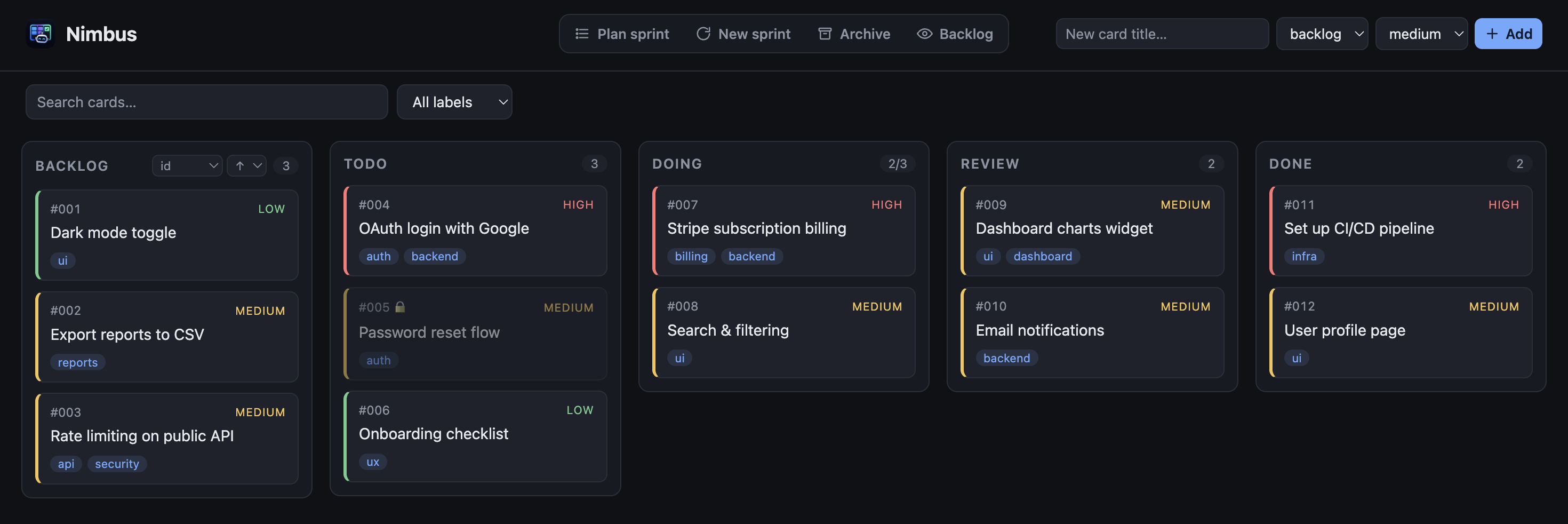
What you can do
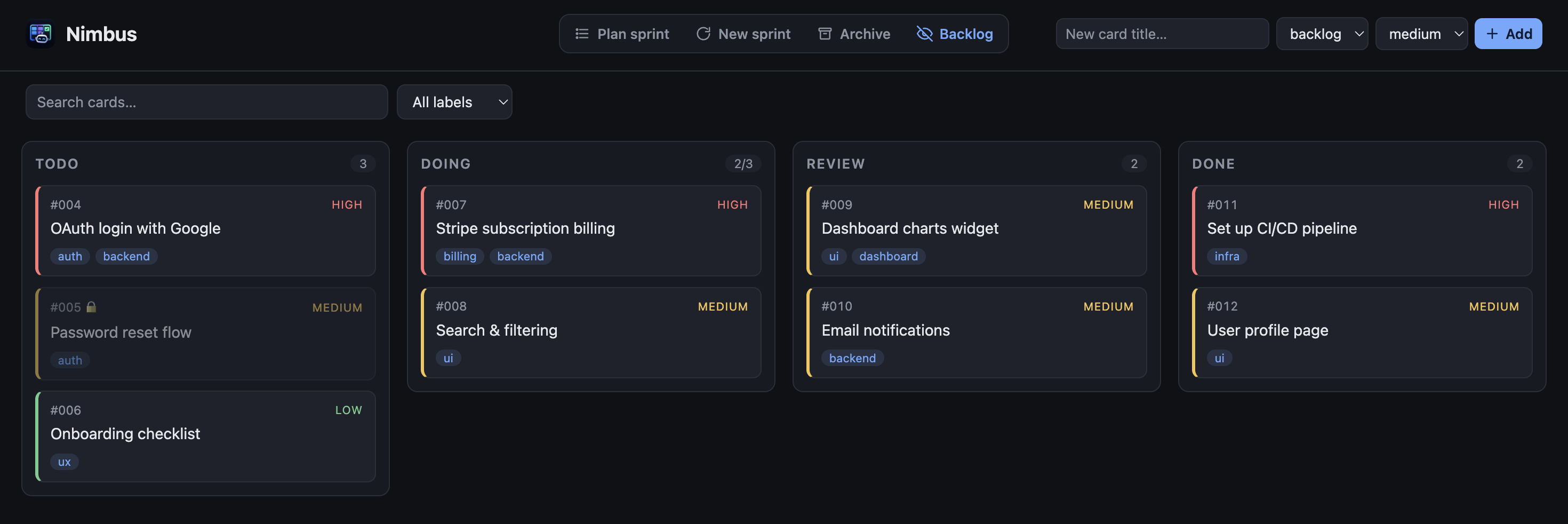
- View the board and create, edit, move, archive, or delete cards.
- Drag-and-drop cards between columns (the new order is persisted), or move from a card's detail modal.
- Plan a sprint — move several backlog cards into
todoat once — and close the current sprint (archive done cards, optionally reset the active columns, optionally stamp a release version). - Search cards and filter by label or type.
- Browse archived cards, click one to see its full detail, and restore it.
- See WIP-limit and blocked-by-dependency indicators.
Creating a card
The New card button opens a modal with every field — title, column, priority, type, labels, and description — so a card can be created fully formed in one step.
Card details
Click any card to open its details — description and acceptance criteria, labels, dependencies, type, and release version — and move, edit, archive, or delete it right from the modal.
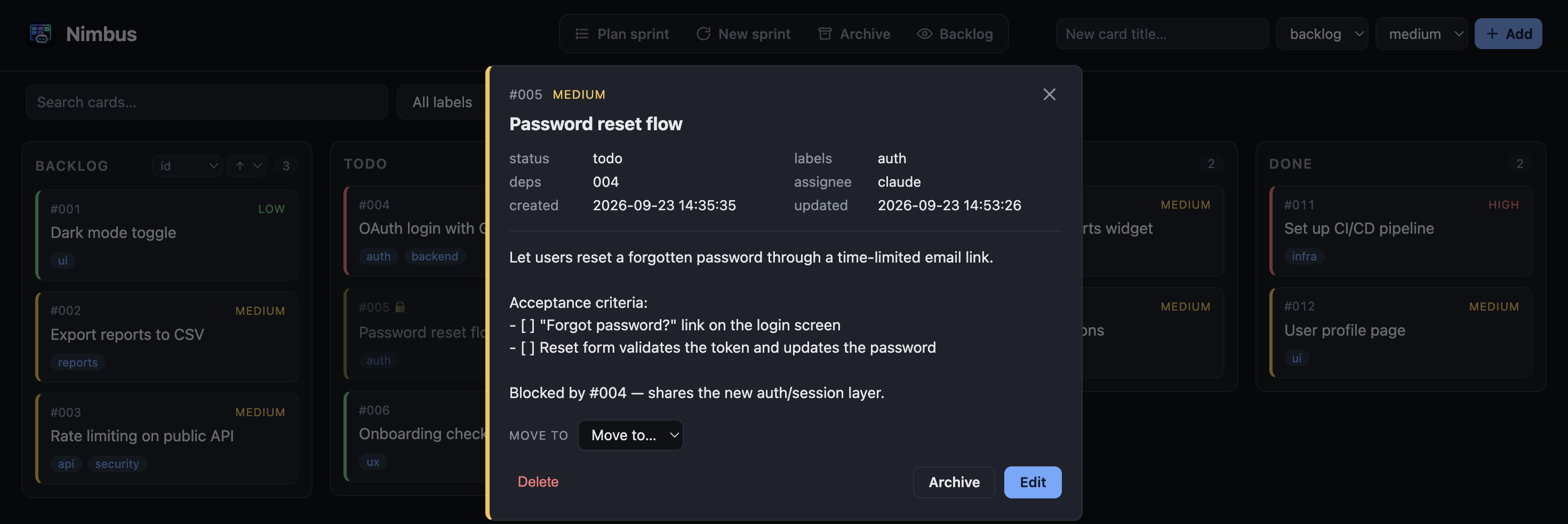
Planning a sprint
The Plan sprint button opens a picker of your backlog cards — check the ones you want and
move them into the sprint (todo) in one go.
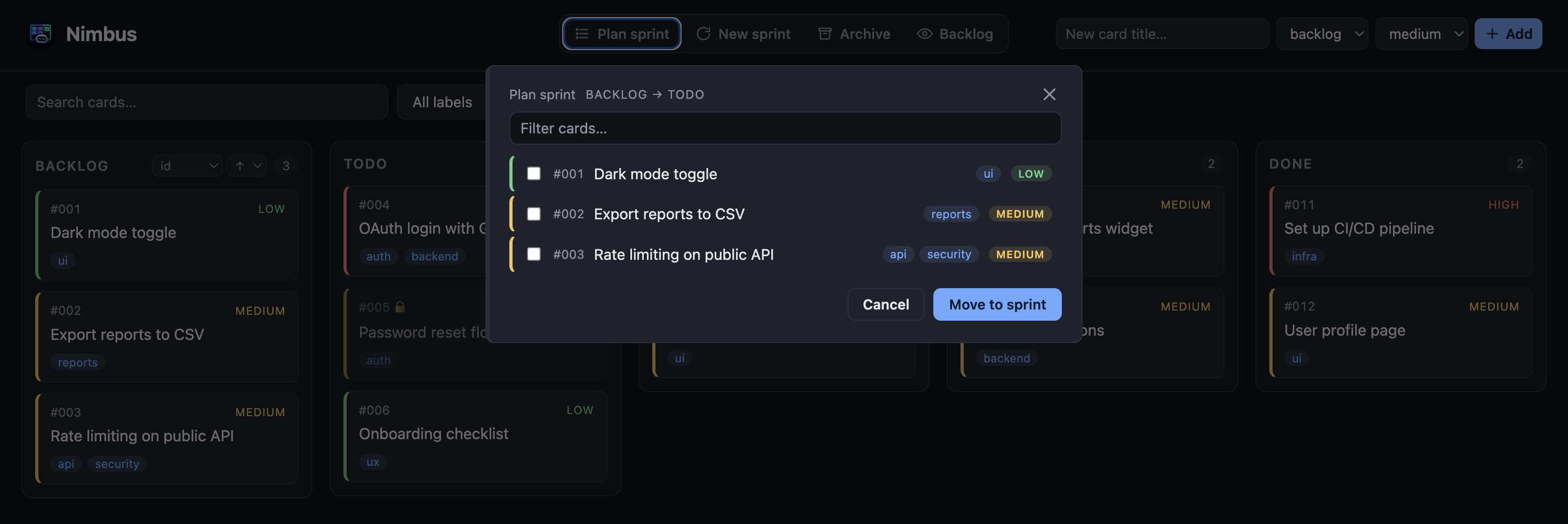
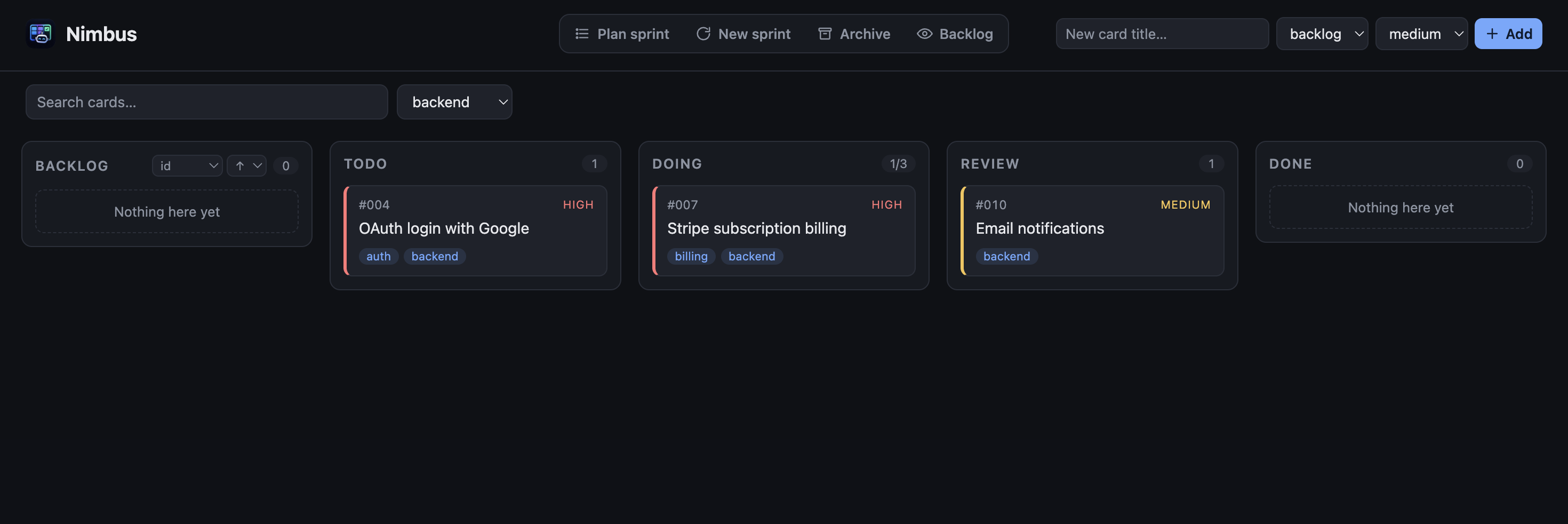
Search and filter
Use the search box and the label filter to focus the board on what matters right now.
Live updates
The UI subscribes to the board over Server-Sent Events. When Claude (or you) moves a card from the CLI in another terminal, the board updates in place — no refresh needed.
Sandboxes and containers
Live updates rely on OS file-change events. In environments that don't deliver them
(some containers, network mounts), start the UI with --poll to fall back to polling.
Notifications
KanbAI notifies you — with the platform's default sound — the moment a card reaches
review (or done, on boards with no review column) and whenever that move leaves the
sprint with no actionable card left to pick up. There's no background process to keep
running: the notification fires as part of the move itself, whether you drag the card here
in the web UI or run kanbai review <id>/kanbai done <id> from a terminal — even with no
web UI open at all.
Two channels, checked independently on every qualifying move:
- Native desktop notification (macOS Notification Center, Linux via
notify-send's dbus service, Windows toast). On by default. No credentials, no external service. - ntfy push, off by default — set
ntfy_topicinconfig.tomlto also push to the public ntfy.sh server. Reaches your phone (via the ntfy app) or any device subscribed to that topic, not just this machine. ntfy.sh needs no signup or token — the topic name itself is the only thing gating who receives it, so pick something that isn't easily guessable.
A flaky or offline ntfy.sh never blocks the move that triggered it — a failed push is silently skipped rather than raised. Every notification title is prefixed with the board's name, so running several boards side by side doesn't mix up which one needs your attention.
Native notifications need a signed executable on macOS
macOS only allows signed executables to post notifications via Notification Center.
A plain python3 from Homebrew (or most pip/uv installs) is unsigned, so native
notifications silently do nothing there — no error, just no popup. The
python.org installer ships a signed
framework build that does work; otherwise, the ntfy channel above
is unaffected by this and a reliable fallback on macOS.
Don't want the native channel? Turn it off in
config.toml.
Sorting the backlog
The backlog column has a small sort control in its header. Pick a key (id, priority,
type, or title) and a direction (↑ ascending / ↓ descending); the new order is
written back to the cards, so it sticks everywhere — including the CLI. Ascending priority
reads low → medium → high; use ↓ to put the highest priority first.
Closing a sprint
The Close sprint button archives every done card and, optionally, sends the active
columns back to the backlog — with an optional release version stamped on every archived
card, so the archive later shows which release shipped it. It refuses to run (and shows an
alert in the modal) while any card is still in review, so unapproved work is never silently
archived or moved.
Hiding the backlog
Use the eye toggle in the top bar to hide the backlog column and give the sprint columns the full width. The choice is remembered in your browser.
Multiple projects
To watch several projects at once from a single server, use the multi-board hub.